
Blog
How to Back Up Your WordPress Site (And Why Your Host’s Backup Isn’t Enough)
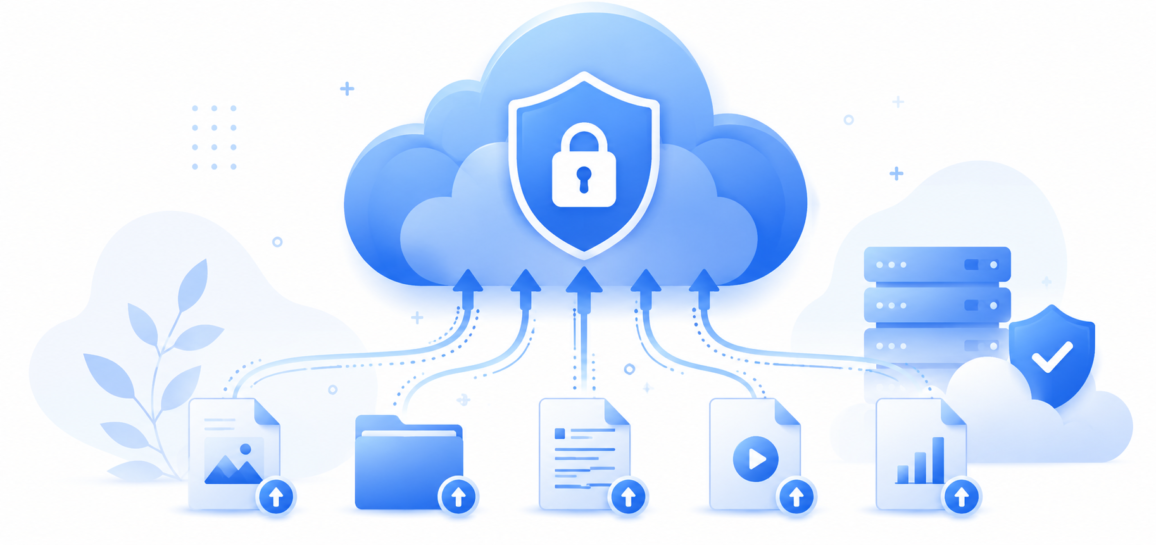
Most managed hosting plans – including Wirespan’s – include automated server-level backups as part of the hosting environment. That is a helpful layer of protection, and it has saved more than a few clients from losing everything after an accidental deletion or a botched update. But treating your host’s automated backup as your primary or only backup strategy is a risk that most site owners do not fully appreciate until something goes wrong at the wrong time.
Here is why, and what a real backup strategy looks like.
Why Host-Level Backups Have Limits
Automated server backups are designed to support server-level operations – snapshot restores, disaster recovery for infrastructure events, and similar scenarios. They are not designed to be a client’s personal backup archive. A few scenarios where relying solely on host backups becomes a problem:
- The backup is on the same infrastructure as the site – If a catastrophic server event affects both your live site and the backup storage, you could lose both.
- Backup frequency and retention varies – Depending on your plan and configuration, you may only have a rolling window of recent backups available. If you discover a problem that happened two weeks ago, the backup you need may already be gone.
- Backups are not always restorable – Automated backups can fail silently. It is not uncommon to attempt a restore and find the backup is incomplete or corrupted.
- Account termination – If your hosting account is terminated for any reason, access to hosted backups typically ends at the same time.
What a Good Backup Strategy Looks Like
A solid backup approach follows what is often called the 3-2-1 rule: three copies of your data, on two different types of storage, with one copy stored off-site.
In practical WordPress terms, this might look like:
- Automated server backup (your host’s system) – the first layer
- Plugin-managed backup to cloud storage – an independent backup stored somewhere like Google Drive, Dropbox, or Amazon S3
- Periodic manual backup downloaded locally – a copy on your own machine or external drive for the most critical data
WordPress Backup Plugins Worth Considering
Several well-regarded plugins handle automated off-server backups without requiring technical setup:
- UpdraftPlus – One of the most widely used backup plugins. Supports scheduled backups to Google Drive, Dropbox, S3, and other destinations. The free version covers most use cases.
- Duplicator – Strong option if you also want to use backups for site migrations or cloning.
- BackupBuddy – A premium option with solid scheduling and remote storage options.
What to Back Up
A complete WordPress backup includes two components:
- Database – Contains all your posts, pages, settings, user accounts, WooCommerce orders, and other dynamic data. This is the most critical piece to have backed up regularly.
- Files – Includes your WordPress core files, themes, plugins, and everything in the /wp-content/ directory. This changes less frequently than the database but still needs to be part of a complete backup.
How Often Should You Back Up?
It depends on how frequently your content changes:
- Active eCommerce stores: Daily database backups at minimum, weekly full-site backups
- Regularly updated sites (blogs, news): Daily or weekly database backups, weekly or monthly full-site backups
- Low-activity sites (brochure sites, portfolios): Weekly or monthly full-site backups, plus a backup before any updates
The most important backup to take is the one you make before any significant change – a major update, a redesign, a new plugin install, or a hosting migration. Do not skip this one.
Have questions about backups on your Wirespan account or need help setting up a backup plugin? Open a support ticket and our team can walk you through it.
Share this Post


Supercharge Your Website!
Lightning-fast Speed, Robust Security, and Expert Support.

Recent News
-
-
-

5 Signs It's Time to Upgrade Your Hosting Plan
By Wirespan